DHIS2 Tutorials
Create Scorecards using the Pivot Table app
Scorecards definition: In public health settings such as Ministries of Health, scorecards offer a useful and standardized method for combining related indicators into one table. A scorecard gives an overall view of the performance of a health program such as a vaccination program, highlighting successes, weaknesses, and areas for improvement Here's what a typical scorecard looks like:
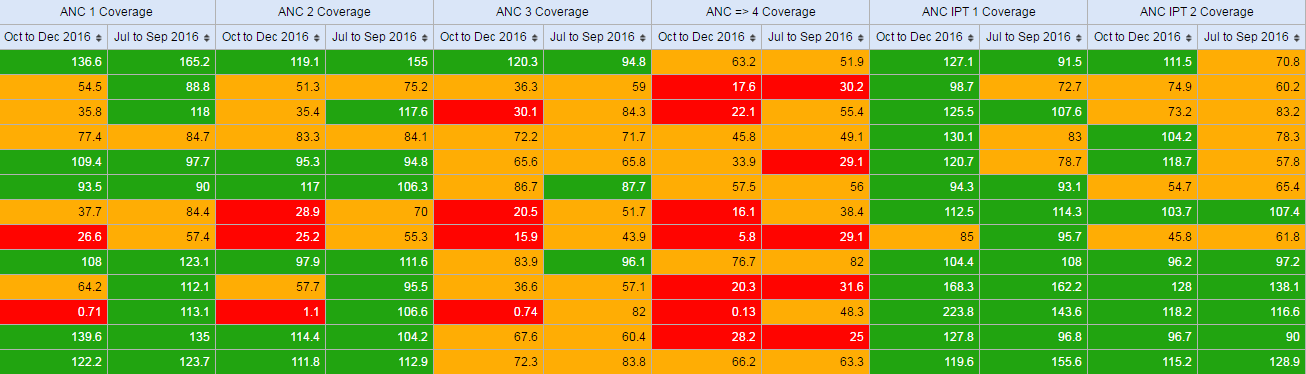
This tutorial explains how to create a scorecard in the DHIS2 Pivot Table app. There are several advantages to using the Pivot Table to create a scorecard, such as:
-
You can save the scorecard on the dashboard and use it offline.
-
You can share the scorecard with other DHIS2 users.
Let's get started!
Create a legend for your scorecard
First, we’ll create a 3-color “traffic light” legend for the scorecard. With three basic colors, the scorecard is easy to scan and easy to understand.
-
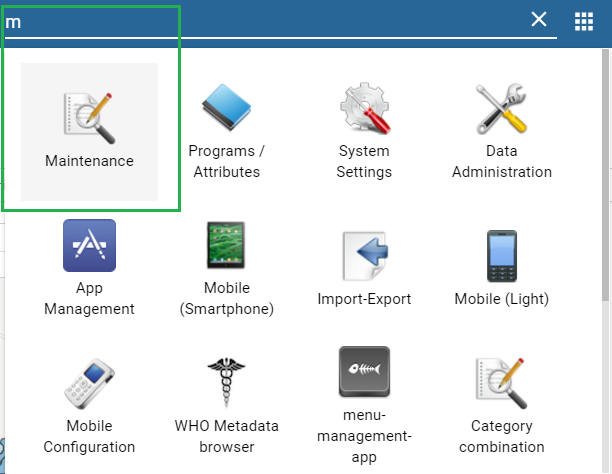
Open the Maintenance app. Click the menu in the top right corner and select Maintenance from the list of apps. You can also type the first letters of the word maintenance in the search field to find the app.
-
In the Maintenance app, scroll to the bottom of the page right down to the Other section.
-
Go to Legend and click the +.

-
In the Legend Management page, scroll to the bottom of the page and create a new legend by clicking the blue + button.

-
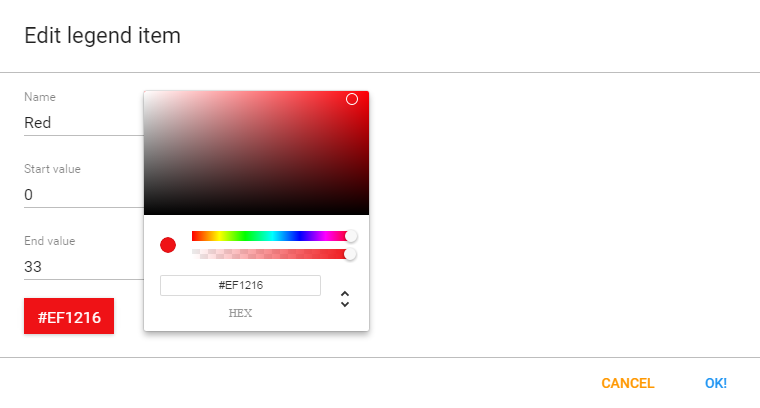
Enter a name for the legend such as “Traffic light”, a start value and an end value in the fields. The values you enter here depend on the performance ratings you wish to set for the scorecard.
-
Change Number of legend items to 3 to display three colors in the scorecard. To change the legend item colors, click the blue + button and then edit the colors.
Create a scorecard in the Pivot Table app
-
Open the Pivot Table app from the top right menu of the dashboard. You can also enter the first letters of Pivot Table in the search field.
-
Go to Data in the pane on the left side and select Indicators in the list.
-
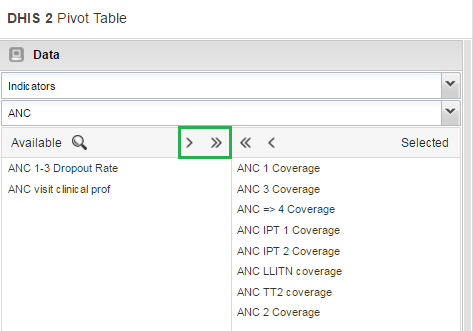
Select an Indicator group such as “ANC” in the second list.
-
Using the arrows, select the type of indicators you want to see in your scorecard.
-
Click Update. This button is in the menu at the top of the workspace
-
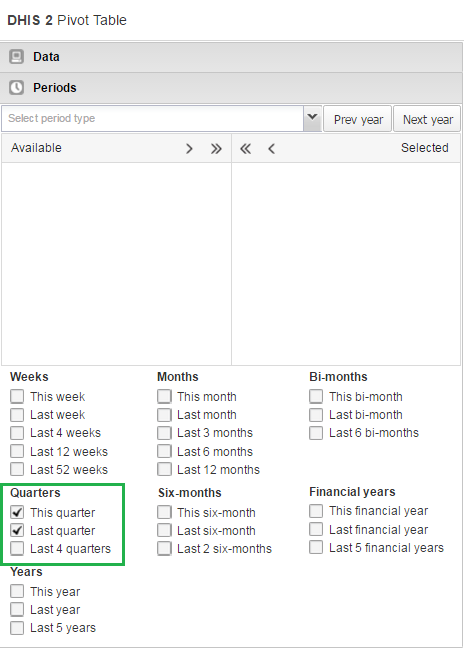
Go to Periods and select a period for which you want to display data. In this “traffic light” example, we’ll use the relative period section. In Quarters, select This quarterand Last quarter. Clear any other checkboxes and click Update.
-
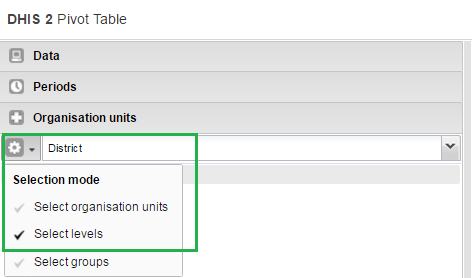
Go to Organisation Units in the same left side pane, and click the arrow next to the gear button.
-
Select Select levels.
-
Select District from the list (next to the gear button). Click Update.
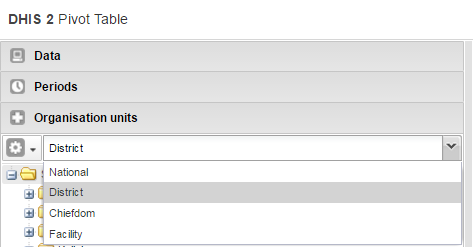
As you can see, the scorecard is starting to take shape in the workspace. Now it’s time to fine-tune the look and feel.
Organise the layout and display of your scorecard
-
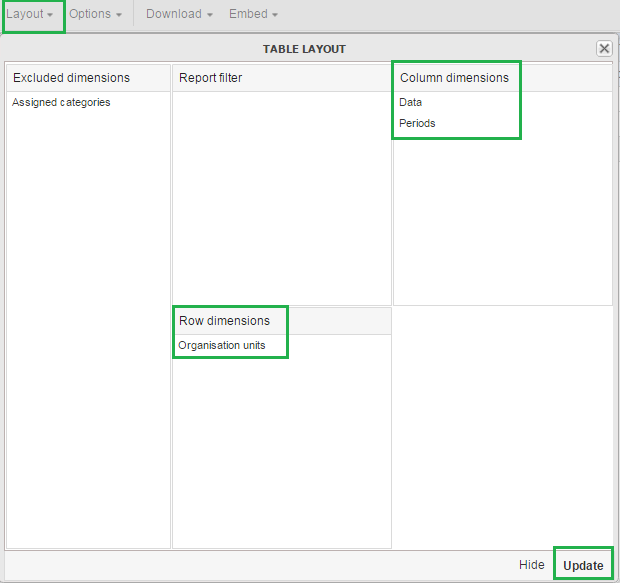
In the workspace, click Layout.
-
In Table layout, drag Organisation units down to the Row dimensions section.
-
Drag Data to the Column dimensions section.
-
In the Column dimensions pane, drag Periods below Data, and click Update.
-
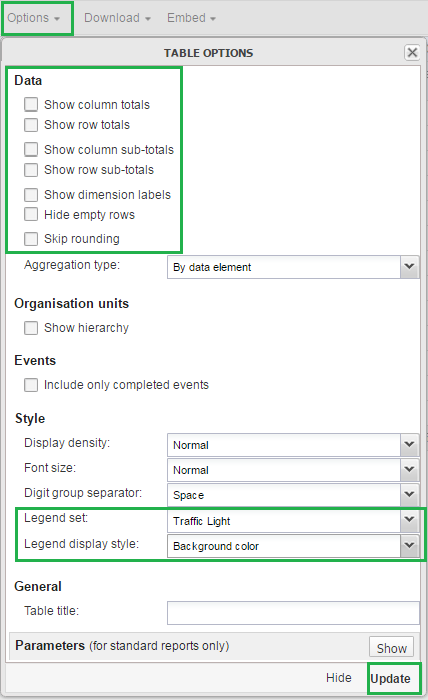
In the workspace, click Options.
-
Go to Data and clear all the checkboxes.
-
Go to Style > Legend set and from the list, select the legend you created in the Maintenance app. In this example, we called it Traffic light.
-
Go to Style > Legend display style and select Background color.
-
Click Update.
The Scorecard is ready!
Save and share your scorecard
-
In the workspace, go to the Favorites menu.
-
Click Save as. Enter a name for your Scorecard.
-
To share your Scorecard, select Favorites.
-
Enter the name of a user group name, and click Save. Your scorecard can be viewed by people that you share a dashboard with.
Working with TextPattern
TextPattern was introduced in DHIS2 version 2.29, as a way of defining a pattern that includes variables, generated values and raw text, which then could be generated into a text value. The current use-case for TextPattern is automatically generated attributes for tracked entities, where you want to generate for example unique ids based on a specific pattern.
This guide will cover both basic and advanced topics for working with TextPattern, but is mainly focused on how you can define TextPatterns and which limitations and caveats exists.
TextPattern syntax
A TextPattern is a sequence of segments, joined together by the "+" character. A segment has a specific notation and in most cases a parameter format, which allows for further manipulation of the value.
Table: TextPattern segments
Most segments has a parameter format, except for the plain text segment. The following table lists the available formats, how they are used and example notations using them.
A few important things to note regarding the formats:
-
Date format is very versatile, but be aware of which date or time components you are using. Using components smaller than a day (For example hours or seconds) is not recommended, even though available.
-
Text format allows for marking both the start and end of the input value, but "^..." and "..." will in reality give exactly the same results. The only time you would want to use "^" is when you want to enforce the length of the input value. For example, "^....$" will accept OSLO, since its 4 characters between the start and end, but PARIS will be rejected, since it has 5 characters.
-
When text format is used for unique values, like organisation unit code, make sure that the format does not break the uniqueness. (Example: ORG_UNIT_CODE(..) for "PARIS" and "PANAMA CITY" would both return PA, which means these two organisation units would in reality share generated values)
-
Generation format is the primary way to understanding the capacity of your pattern. Make sure the format is long enough to cover more values than you need.
To finish off the syntax section of the tutorial, here is a couple of example TextPattern:
ORG_UNIT_CODE(...) + "-" + CURRENT_DATE(yyyyww) + "-" + SEQUENTIAL(#####)
This pattern will have 99999 possible values (based on SEQUENTIAL. 00000 is never used since we start at 1). In addition, the remaining pattern will change for each different organisation unit generating values (ORG_UNIT_CODE) and for each week (CURRENT_DATE(yyyyww) represents year and week). That effectively means every new week, each organisation unit will have 99999 new values they can use.
"ABC_" + RANDOM(****)
The plain text segment of this pattern, will make no difference in the total capacity of the pattern, however the generated segment (RANDOM) will allow for 14776336 possible values. The reason for this is that * can be any one character of the 62 characters available (0-9, a-z, A-Z). You can read more about understanding pattern capacity further down in the tutorial.
Designing TextPattern for generating ids
One use-case for TextPattern is to generate unique ids. In this section we will present guidelines and common issues related to designing TextPatterns used for ids.
An id should never contain sensitive information, or information that in combination can identify an individual. TextPattern does not currently support segments that uses these kind of values, but might do so in the future.
The following list highlights some of the TextPattern specific restrictions you need to consider when designing a TextPattern for ids:
-
Make sure the capacity (number of possible values) of the TextPattern covers your use-case. It's better to have more values than needed than less. Tracked entity attributes using TextPattern will require that a single generated segment is present in the TextPattern.
-
A TextPattern is unique in the entire system, but only for the object using it. In other words, if you have a single tracked entity attribute with TextPattern, used by multiple Tracked entities (Not to be mistaken for tracked entity instances), all values generated will be shared between all traced entities using the attribute. This also means that if you have two tracked entity attributes with the same TextPattern syntax, each attribute will be able to generate the same value as the other, since uniqueness is based on the attribute.
-
SEQUENTIAL segments are in the implementation numbers starting from 1, increasing by 1 for each value, sequentially until no more values are available. However, in reality you will most likely end up with gaps when users generate and reserve values that is never used, or if a user sends in a value where the SEQUENTIAL segment has a higher value than recorded on the server.
-
The current implementation relies on the user-client to send in the values contained in the TextPattern when storing a new value. That means generating a correct id is depending on the user, and user-client, to provide the correct data.
Understanding TextPattern capacity
The most important thing to keep in mind when designing a TextPattern, is the capacity - that means the total number of potential values a TextPattern can yield.
With the current implementation of TextPattern, there are three main factors that decides the capacity:
-
Capacity of the generated segment in the TextPattern
-
The presence of a CURRENT_DATE segment
-
The presence of a ORG_UNIT_CODE segment
The presence of a date segment (like CURRENT_DATE) will effectively reset the capacity each time the segment changes. Depending on the date format, it can change anywhere to yearly to daily. Important: If your date format don't contain a year, the pattern will resolve to the same value every year. That means values will already be used. For example, if your TextPattern looks like this:
CURRENT_DATE(ww) + "-" + RANDOM(#)
This pattern will give you up to 10 unique values for each week, but after 1 year, CURRENT_DATE(ww) will be the same as last year, and you will have no new values available. If you use "yyyy-ww" instead, it will be unique for every year, every week.
Organisation unit codes will make your values unique for each different organisation unit, which means if you have a text pattern like this:
ORG_UNIT_CODE() + "-" + RANDOM(#)
This pattern will give you 10 unique values for each different organisation unit.
Calculating capacity for generated segments
Understanding how to calculate the capacity of a TextPattern is critical when designing TextPatterns. The generated segments will be the main component of any TextPattern in terms of capacity, then increased based on the presence of ORG_UNIT_CODE or CURRENT_DATE.
Let's start with SEQUENTIAL segments. Each "#" in the format represents a number between 0 and 9. To calculate the total capacity, you multiply the number of possible values for each "#". Since it's always 10 (0-9) the maths is quite straight forward:
SEQUENTIAL(#) = 10 = 10 SEQUENTIAL(###) = 10 * 10 * 10 = 1000 SEQUENTIAL(#####) = 10 * 10 * 10 * 10 * 10 = 100000
Since SEQUENTIAL counters on the server start at 1 and not 0, the actual capacity is 999, but that's insignificant in most cases.
As soon as we involve RANDOM, the calculation becomes a bit more complicated. Similar to SEQUENTIAL, a "#" has 10 possible values, in addition we have "X" and "x" with 26 possible values each, as well as "*" which can be any of the previous, which means 62 (10+26+26) possible values.
To calculate the capacity, you need to take each character in your format and replace with the number of possible values, then multiply them all together like we did for SEQUENTIAL:
RANDOM(#) = 10 = 10 RANDOM(X) = 26 = 26 RANDOM(*) = 62 = 62
RANDOM(X##) = 26 * 10 * 10 = 2600 RANDOM(XXxx) = 26 * 26 * 26 * 26 = 456976
RANDOM(***) = 62 * 62 * 62 = 238328
As you can see, the maths gets a bit more complicated when, but by following this recipe you can see the number of potential values.
Random segments and why you should avoid it
There is a hidden cost of using the random segment in TextPattern in the long run, but that does not mean you should never use it. This section will highlight the problems of using the random segment and suggest when it might be more appropriate to use it.
This section is motivated by an issue with the previous generation strategy, where you only had random generation. After while, instances using this feature would actually be unable to generate and reserve new values, since it was taking to long to find available values. This section looks at some of the problems with random generation that created this situation.
Generating random values
Before using the RANDOM segment in your TextPattern, you should consider the following problems connected to the use of RANDOM:
- Generating values from a TextPattern with a RANDOM segment will be more complex than other TextPatterns
Data entry for TextPattern based metadata
As previously mentioned, the only metadata currently supporting TextPattern is the tracked entity attributes. In this section, we will describe the different ways data entry for TextPattern works, especially for tracked entity attributes.
Validation of values using TextPattern
By default, all values sent to the server for metadata using TextPattern, will be validated. Validation can be skipped if needed, but you should always validate input under normal circumstances. The validation will be based on the TextPattern you have defined and will be as strict as possible:
-
Date segments must match the same format as specified in the segment parameter
-
Plain text segments must match exactly
-
Text segments values must be at least as long as the format string. If both "^" and "$" is present, the value must match the exact length.
-
Generated segment values must match the format exactly, character by character.
When using the server to first generate and reserve values, the server will modify the values used in the TextPattern before injecting them, meaning you will always get a valid value when generating it on the server.
A final exception to TextPattern validation is made for a special case: If you change a TextPattern after reserving values for the original pattern, values sent to the server that are invalid according to the new TextPattern, will still be accepted if it was already reserved.
Different data entry flows for TextPattern
There is currently 2 ways a client can store values for TextPattern metadata:
-
Generating and reserving values (Apps should do this for you)
-
Storing a custom value
The preferred way, is to generate and reserve the needed values (The number of values generated and reserved is handled by the app). That means each time you are seeing and storing a value, it has been generated and reserved by the server, and will be valid.
The other way might be useful in specific cases. The user will supply the value themselves and as long as the value supplied is valid for the TextPattern, they can put anything they want. The caveat of doing it this way, is that you might use values that was reserved by someone else and if you have a SEQUENTIAL segment, the counter will not be updated.